
Thunderbolt
Identifying the correct Thunderbolt cable
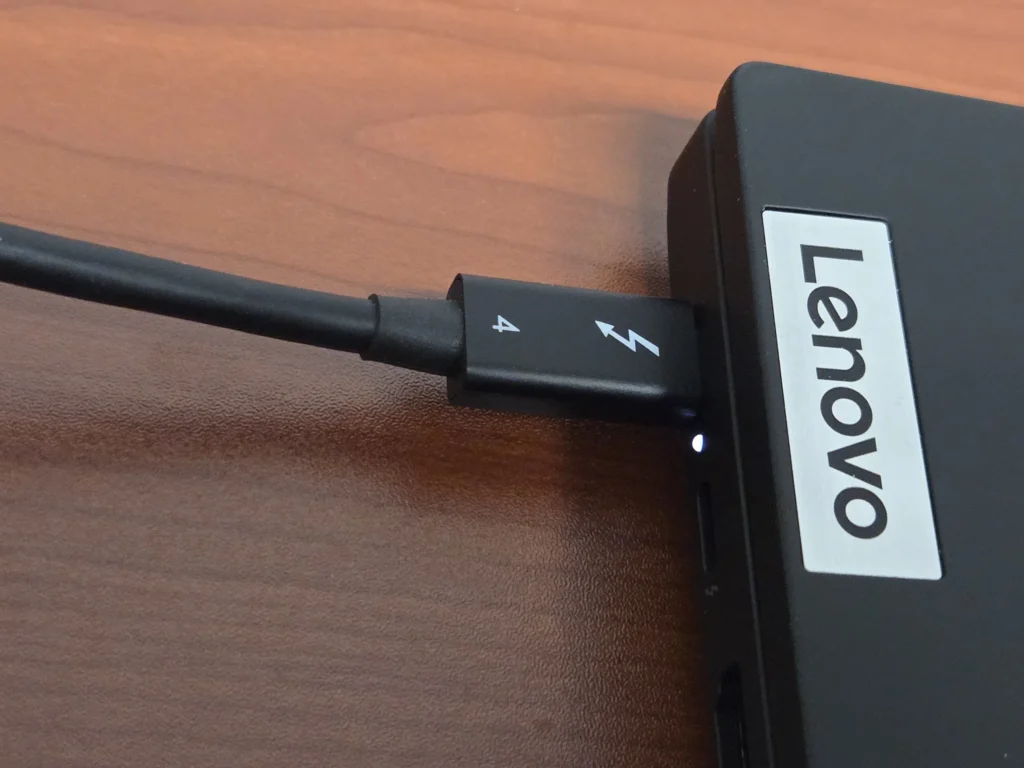
Thunderbolt cables
Thunderbolt Cables for Power, Data, and Video Transfer
Thunderbolt cables are high-performance cables that deliver exceptionally fast data transfer, video output, and power delivery through a single connection. They were originally developed by Intel in collaboration with Apple and first introduced in 2011. While Thunderbolt 3, 4, and 5 use the exact same physical USB-C connector as regular USB-C cables, they are not the same. Thunderbolt cables are specially engineered and certified to support much higher speeds (up to 40 Gbps for Thunderbolt 4, and up to 120 Gbps for Thunderbolt 5), PCIe tunneling, daisy-chaining multiple devices, and more advanced features. Power delivery capabilities of Thunderbolt also exceed most standard USB-C cables.
To recognize a Thunderbolt cable, look for a small lightning bolt symbol printed on the connector housing. The symbol is often accompanied by the version number (3, 4, or 5). Regular USB-C cables lack this logo and will not unlock the full capabilities of a Thunderbolt port.
One of the most common real-world uses of Thunderbolt cables is connecting a laptop to a Thunderbolt dock. This single cable can simultaneously deliver power, high-speed data, Ethernet, multiple USB ports, and video output to one or more external displays. It provides excellent connectivity that turns a portable laptop into a highly functional workstation setup with minimal clutter.
Thunderbolt 3
Thunderbolt 3 explained
Thunderbolt 3, released in 2015, was a major advancement that brought Thunderbolt capabilities to the USB-C connector for the first time. It delivers up to 40 Gbps (billion bits per second) in both directions simultaneously, supports up to 100 Watts power delivery, and can drive up to two 4K displays or one 5K display. It also introduced support for PCIe tunneling, allowing external devices like graphics processing units (GPUs), docks, and storage to perform almost as if they were connected internally. One of Thunderbolt 3’s most useful features is the ability to daisy-chain up to six devices from a single port.
While it uses the same USB-C connector as regular USB-C cables, only certified Thunderbolt 3 cables (marked with the lightning bolt logo) can deliver the full 40 Gbps performance and advanced capabilities.
Thunderbolt 4
Thunderbolt 4 explained
Thunderbolt 4, released in 2020, is an improved and more standardized version of Thunderbolt 3. While it maintains the same maximum speed of 40 Gbps (billion bits per second), it introduces stricter certification requirements that guarantee more consistent performance across devices. Thunderbolt 4 also requires better support for multiple displays and improves overall compatibility between different manufacturers. Key capabilities include up to 40 Gbps data transfer, up to 100 Watt power delivery, and mandatory support for two 4K displays or one 8K display. It continues to support PCIe tunneling and daisy-chaining of multiple devices. Thunderbolt 4 also adds enhanced security features such as DMA (Direct Memory Access) protection. Like previous versions, Thunderbolt 4 uses the USB-C connector. You can identify Thunderbolt 4 cables and ports by the lightning bolt logo, often with the number 4.
Thunderbolt 5
Thunderbolt 5 explained
Thunderbolt 5, introduced in 2023, represents a significant leap in performance over previous generations. It doubles the bidirectional bandwidth to 80 Gbps (billion bits per second) and offers a special Bandwidth Boost mode that can reach up to 120 Gbps for video-intensive workloads. This makes it especially powerful for high-resolution displays, fast external storage, and professional workflows. Thunderbolt 5 supports up to 240 Watts power delivery, significantly higher than Thunderbolt 3 and 4. It also delivers greatly improved display capabilities, including support for multiple high-refresh-rate 4K displays or up to dual 8K displays. Like earlier versions, it continues to support PCIe tunneling and daisy-chaining of devices. Thunderbolt 5 uses the same USB-C connector as previous Thunderbolt versions. Certified Thunderbolt 5 cables are identified by the lightning bolt logo, often with the number 5.
Thunderbolt Versus USB
How do Thunderbolt cables and USB ports interact?
Thunderbolt cables and USB-C ports are highly compatible because Thunderbolt 3, 4, and 5 all use the same USB-C connector. A Thunderbolt cable plugged into a regular USB-C port will work perfectly for charging and data transfer, but it will operate at standard USB speeds and features only. Conversely, a regular USB-C cable plugged into a Thunderbolt port will also work, but you will not get the full Thunderbolt speeds or advanced capabilities.
To unlock the complete performance of Thunderbolt (40 Gbps, 80 Gbps, or higher, plus PCIe tunneling and best display support), both the port and the cable must be Thunderbolt certified. This is why a genuine Thunderbolt cable is required for docking stations, external GPUs, and high-performance setups. Thunderbolt ports and cables are fully backward compatible with all USB-C, USB 3.x, and USB4 devices, making them very flexible in real-world use.
Many Thunderbolt docking stations and high-end devices include a mix of both standard USB-C ports and dedicated Thunderbolt ports. While you can plug a Thunderbolt cable into any USB-C port on a dock, you will only get full Thunderbolt performance (maximum speed, multiple high-resolution displays, and PCIe features) when the cable is connected to a Thunderbolt-certified port. Using the wrong port or a non-Thunderbolt cable will limit you to basic USB-C functionality, even if you have a genuine Thunderbolt cable. Always check for the Thunderbolt lightning bolt logo on the port to ensure you are getting the full capabilities of your setup.
Cable Handling
Caring for Thunderbolt cables
Thunderbolt cables are more complex and delicate than standard USB-C cables. Because they must support much higher data speeds, PCIe signaling, and greater power delivery, they contain additional shielding and more sophisticated internal wiring. This makes them somewhat less flexible and more prone to damage if sharply bent, pinched, or stepped on. To maximize lifespan, avoid tight loops, excessive twisting, and pulling on the cable. It is also best to unplug them by gripping the connector housing rather than tugging on the cable itself. Due to signal integrity requirements, Thunderbolt cables also have much shorter maximum working lengths than regular USB-C cables.
Because of their higher cost and more sensitive nature, Thunderbolt cables are generally not the best choice for simple everyday charging of small portable devices. Standard USB is often a better choice for a bedside cable charging your phone when your favorite aunt forgets what time zone you live in.
Maximizing Performance
Connection performance
Backward compatibility
Like USB, Thunderbolt ports, cables, and devices work together to automatically negotiate and operate at the maximum performance level that all three components can support. The final speed, power delivery, and features are always limited by the weakest link in the chain (the port, the cable, or the connected device).
Daisy-chain performance
What happens when devices are daisy-chained? When multiple Thunderbolt devices (for example: Laptop → Dock → External SSD → Monitor) are sequentially connected, the entire chain still negotiates to the maximum performance level that the weakest component (port, cable, or device) can support. All devices in the chain share the total available bandwidth of the Thunderbolt connection. This means high-bandwidth activities happening on one device (such as transferring large files or driving high-resolution displays) can reduce the available speed for other devices further down the chain. Power delivery is also shared since the host port has a total power budget that gets distributed across the chain. Best practice: For maximum performance, connect your highest-bandwidth devices (like fast SSDs or high-res monitors) closest to the computer, and lower-demand devices further down the chain.
Thunderbolt History
What happened to Thunderbolt 1 and 2?
Thunderbolt 1 and Thunderbolt 2 were the original versions of the technology, released in 2011 and 2013 respectively. They used a different, wider rectangular connector (similar to a DisplayPort connector) rather than USB-C. These early versions offered up to 10 Gbps and 20 Gbps speeds. Starting with Thunderbolt 3 in 2015, Intel switched to the much more convenient USB-C connector and significantly increased performance. As a result, Thunderbolt 1 and 2 are now considered legacy standards. You will rarely see them on modern devices, and cables using the old connectors are mostly obsolete.