USB Cables
Identifying the correct USB cable
Universal Serial Bus
USB Cables for Power and Data Transfer
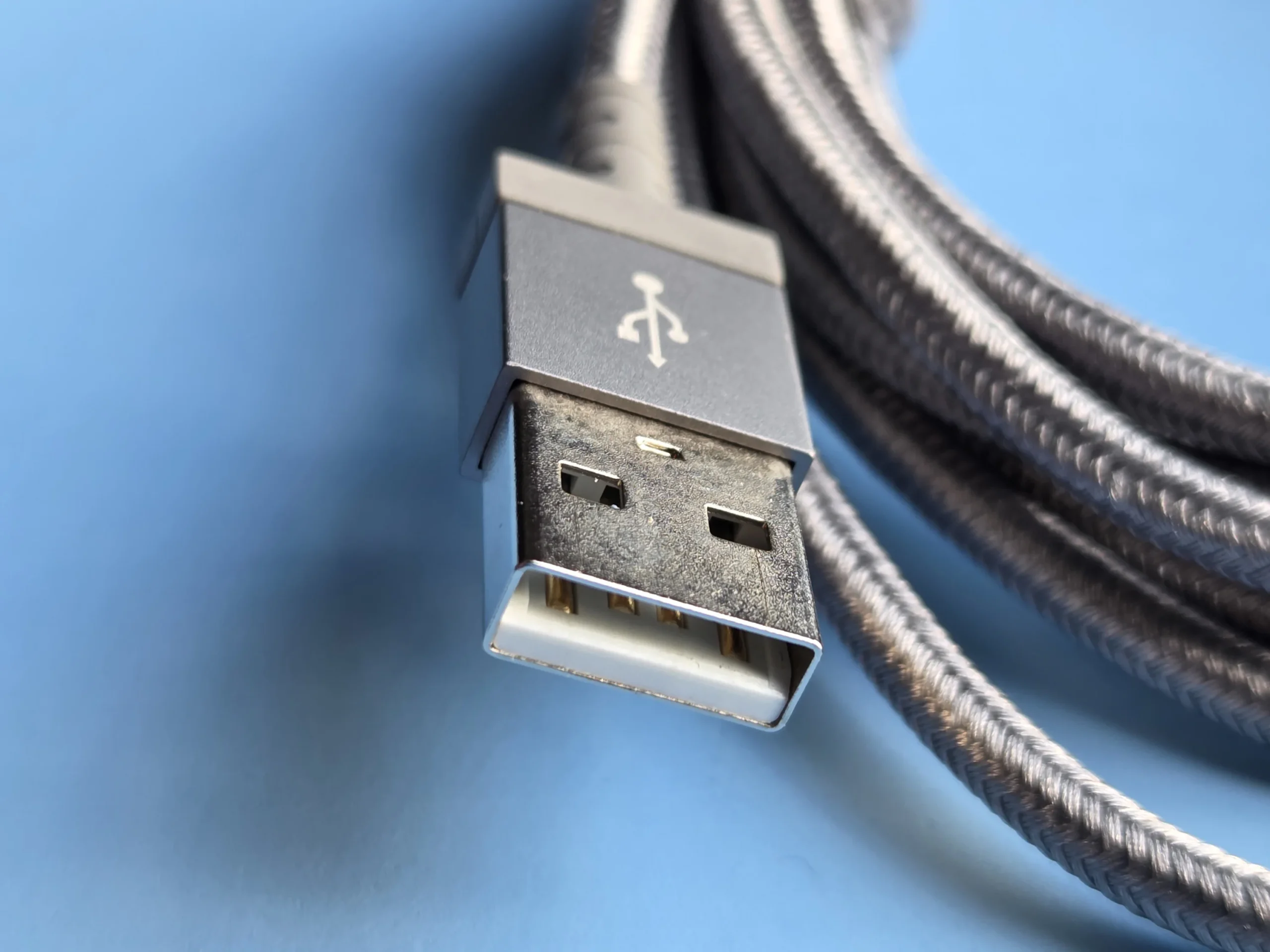
USB is an acronym for Universal Serial Bus. It is a standardized system of connectors, conductors, and protocols for delivering power and exchanging data between different devices. Because it can deliver both power and data, many cables also have built-in electronics that can perform various useful functions. USB has become an extremely common cable type across a wide range of modern and slightly older devices.
Choosing the right USB cable depends on several key factors: the length you need, the connector type on each end, the data transfer speed it supports (if any), and the power rating. Cables are also available with different insulation materials and strain relief designs that affect their durability and resistance to physical stress.
It might sound like a lot to consider, so we’ve broken it down into simple sections below.
Step 1 – Find your Connectors
Identify each end you need on your USB cable so that it connects your devices.
Each cable will typically require two connectors, one at each end. There are some connectors that can connect to more than a single type of port or plug either through attached adapters or designs that accommodate different types. One example of this is a T-shaped plug that has USB-A on one side and USB-C on the other, sometimes seen on devices such as card readers.
Step 2 – Decide what to allow through the cable
Should this cable allow data communication?
The most versatile cables will certainly connect both power and data. However, individuals who need to charge their devices outside the home should consider carrying a charging cable that is intentionally missing the wires that transmit data. This is a security feature that helps to protect your device and data from hackers. Both charging stations and connection cables can be designed to capture data and even install software on a connected device. These can be encountered in public places like coffee shops, airports, and even in work environments or hotel rooms.
Step 3 – Determine data speed requirements
How fast can the data move?
If you’re choosing a dedicated power cable, then the data speed is obviously going to be zero. Cables that do transmit data should comply with USB communication standards. These standards define maximum speeds, electrical requirements, and backward compatibility rules.
Backward compatibility is an important feature of the USB standard because it allows a combination of equipment to work together at the highest standard level that is supported by all parts of the connection. For example, a USB 2.0 flash drive plugged into a USB 4 port will transfer data at USB 2.0 speeds (up to 480 Mbps). The connection automatically negotiates the best common speed.
| USB Standard | Max Speed | Real-World Speed | Best For | Notes |
|---|---|---|---|---|
| USB 2.0 | 480 Mbps | 40-50 Mbps | Keyboards, mice, charging | Most common baseline |
| USB 3.2 Gen 1 (SuperSpeed) | 5 Gbps | 500–600 Mbps | External harddrives, HD video | Former “USB 3.0” |
| USB 3.2 Gen 2 (SuperSpeed+) | 10 Gbps | 1.0–1.2 Gbps | Fast solid-state drives, large file transfers | Former “USB 3.1” |
| USB 3.2 Gen 2×2 | 20 Gbps | 2.0–2.4 Gbps | High-performance solid state drives | Requires USB-C |
| USB 4 (Gen 2/3) | 20–40 Gbps | Up to 4.5+ Gbps | 4K/8K video, external GPUs, Thunderbolt compatibility | Requires USB-C |
| USB 4 Version 2 | Up to 80 Gbps (or 120 Gbps asymmetric) | Highest available | Professional video editing, high-end workflows | Emerging in 2025–2026 |
Step 4 – USB Power Delivery
Choose the charging power you need.
The amount of power a USB cable can safely deliver determines how quickly (or whether) it can charge your devices. Cable, charger, and power receiving device must all support the desired power level for optimal results because the weakest link in the chain sets the limit.
Connector types do affect power delivery limits of Universal Serial Bus cables.
Step 5 – Cable Construction
Other cable considerations
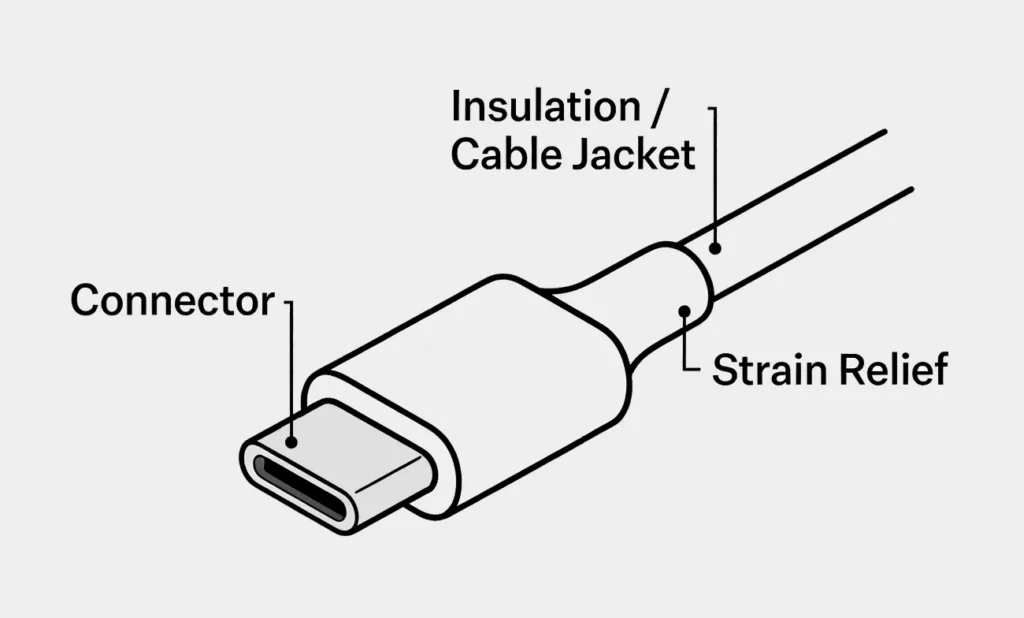
The strain relief is the flexible, often thicker section where the connector meets the cable. Its job is to prevent the cable from bending too sharply at this vulnerable point, reducing stress on the internal wires and helping the cable last longer. The cable jacket (also called the insulation or outer sheath) is the durable outer covering that runs the length of the cable. It protects the delicate internal wires from physical damage, abrasion, heat, and moisture while keeping the cable flexible. Together, these components play a big role in a cable’s durability and safety.
USB Cable Length Limitations
USB cable length is limited by signal degradation. The longer the cable, the weaker and more distorted the data signal becomes. Slower standards typically support longer cables: USB 2.0 works reliably up to about 5 meters (16 ft), while USB 3.x is limited to 2–3 meters (6–10 ft) for full performance. High-speed USB4 and Thunderbolt cables are even more restrictive, often maxing out at 0.8–2 meters (2.6–6.6 ft) for full data rates. In retail, you’ll most commonly find USB cables in 0.5m (1.6 ft), 1m (3 ft), 2m (6.5 ft), and 3m (10 ft) lengths, with 1m and 2m being the most popular for everyday use.