
Video Connectors
Identify each end you need on your video cable so that it connects your devices.
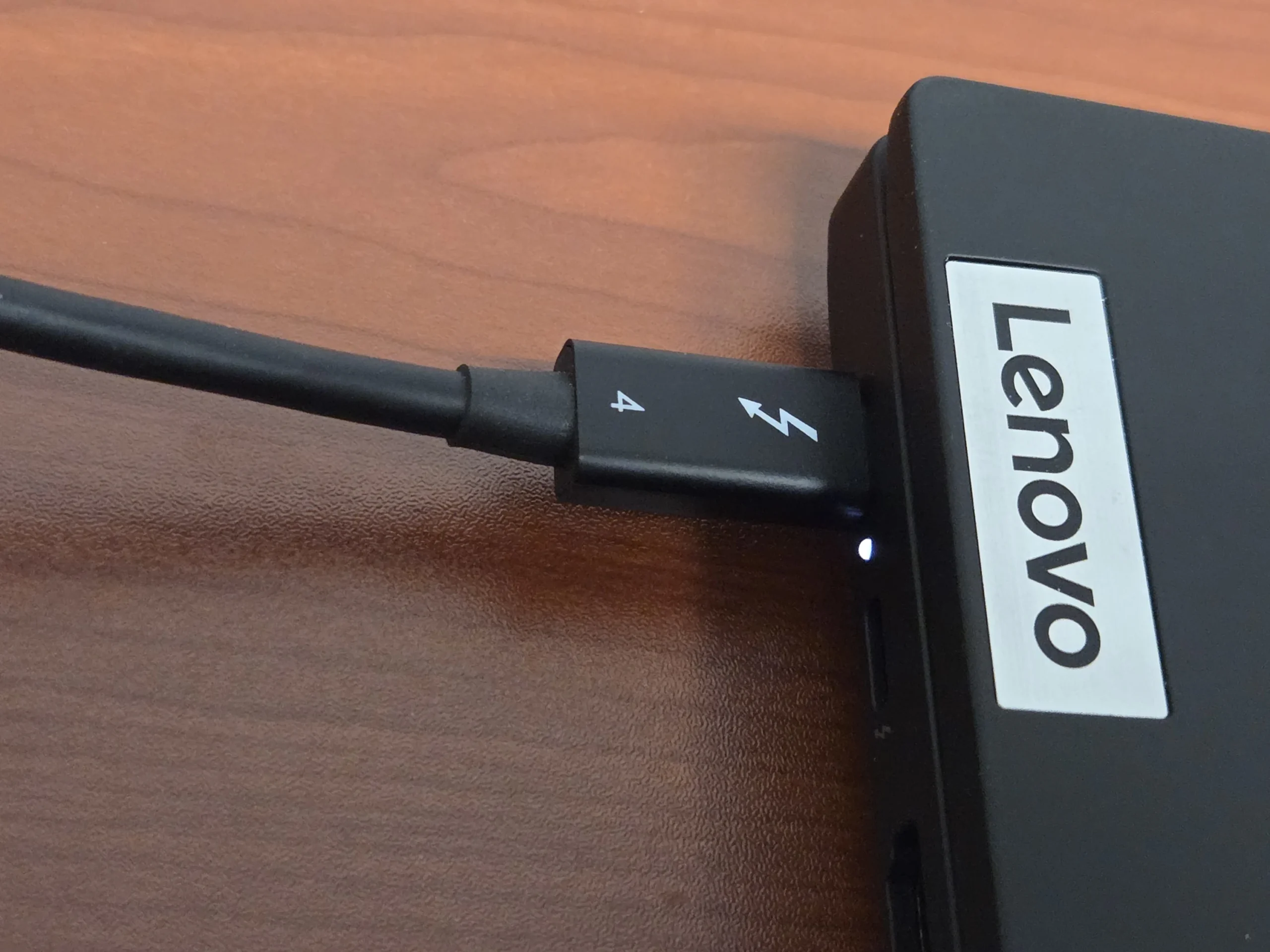
Thunderbolt
Thunderbolt cables transfer video signals along with power and other data. They use the same connector as USB-C cables, but they are NOT Universal Serial Bus cables. Check your cable or port for a Thunderbolt symbol. Follow the Thunderbolt page link below for more detail on this impressive cable technology.
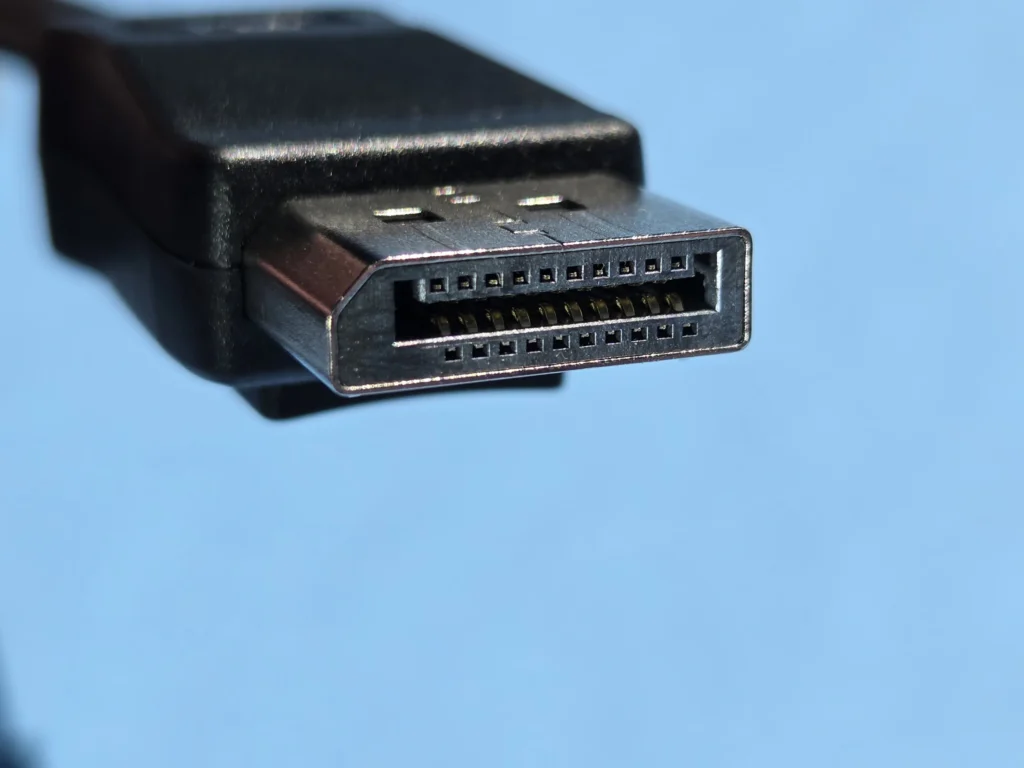
DisplayPort
DisplayPort is a high-performance digital video interface developed by the Video Electronics Standards Association (VESA). It is widely used for connecting computers, laptops, and graphics cards to monitors and other displays. Unlike HDMI, which is common on consumer electronics, DisplayPort is primarily found on computer hardware and offers excellent support for high resolutions and refresh rates.
Modern DisplayPort versions (especially 1.4 and 2.1) can support up to 8K resolution, high dynamic range (HDR), and very high refresh rates. It also supports multi-monitor setups through daisy-chaining and carries both video and audio signals. DisplayPort cables are commonly used by gamers, content creators, and professionals who need maximum performance and flexibility from their displays.
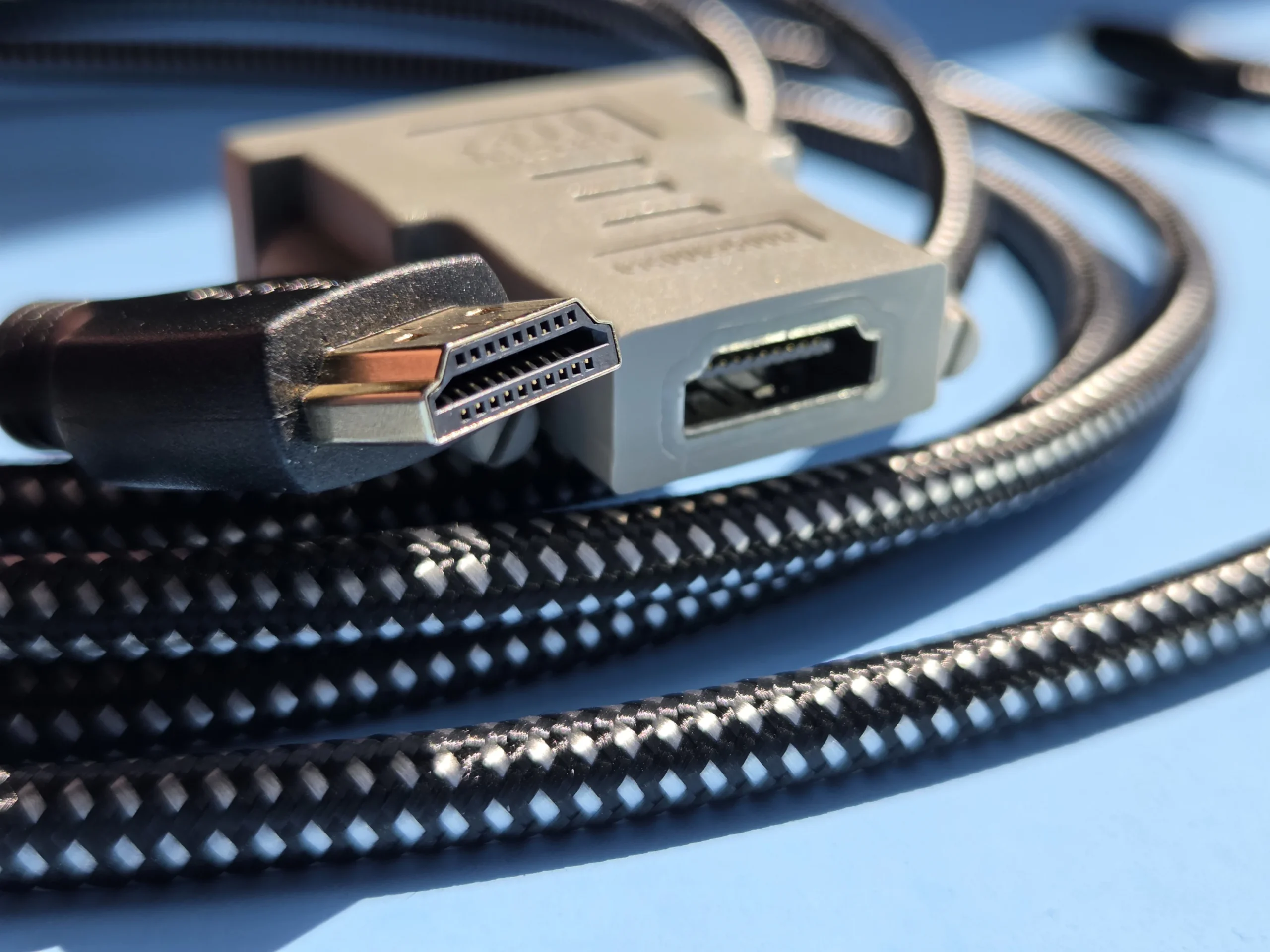
HDMI
HDMI (High-Definition Multimedia Interface) is the most widely used video and audio connector in consumer electronics. It was designed to carry high-quality digital video and audio signals through a single cable, making it the standard choice for connecting devices such as TVs, monitors, game consoles, Blu-ray players, streaming devices, and computers.
Modern HDMI versions (especially HDMI 2.0 and 2.1) support 4K and 8K resolutions, high refresh rates, HDR, and advanced gaming features such as Variable Refresh Rate (VRR) and Auto Low Latency Mode. HDMI cables are available in a wide range of lengths and are generally easy to use thanks to their widespread adoption across almost all modern televisions and displays.
Starting with HDMI 1.4, some cables support an “Ethernet Channel” that lets compatible devices share a 100 Mbps network connection through the same cable. In practice, this feature is about as commonly used as a floppy disk drive in 2026.
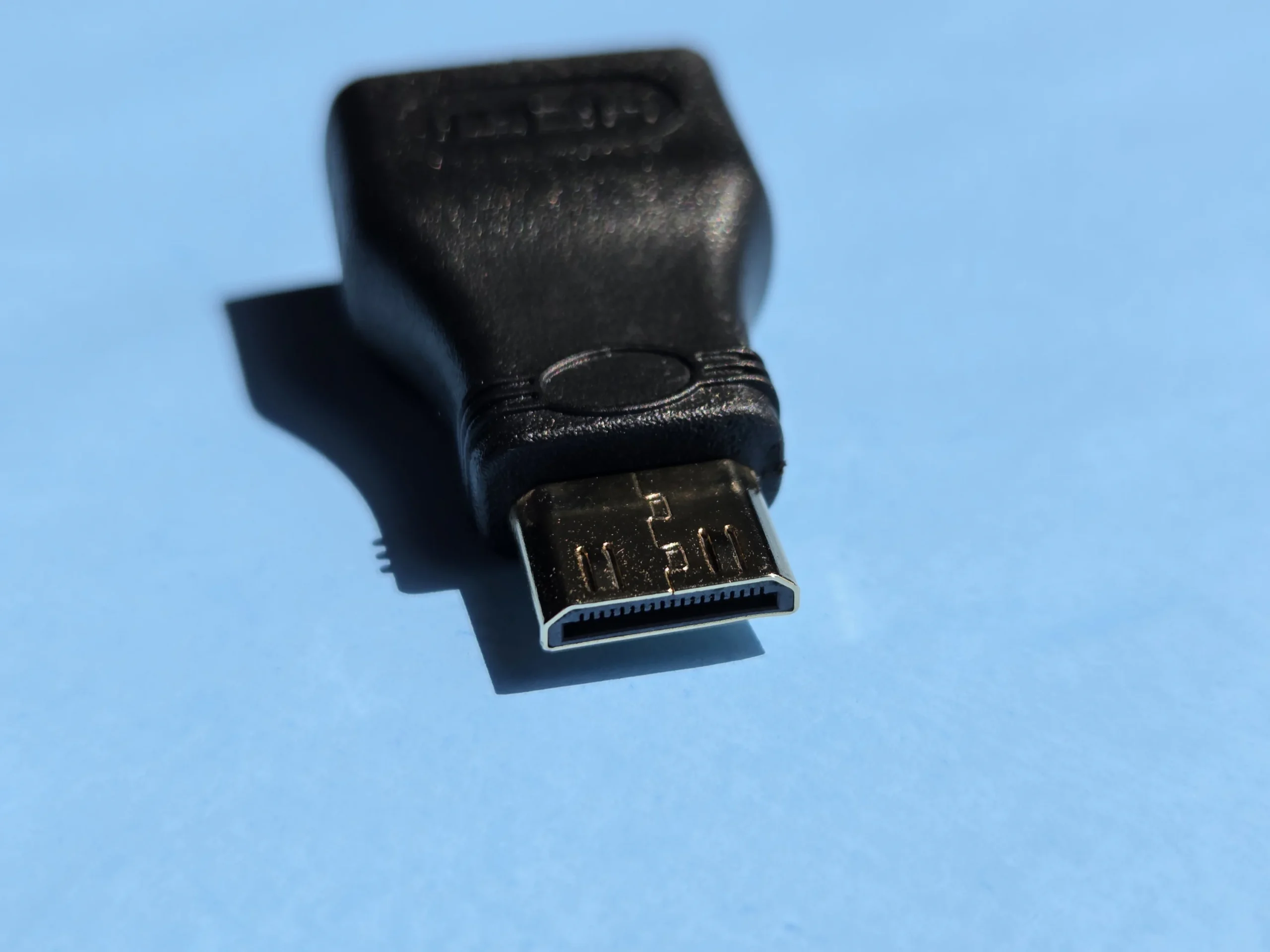
Mini-HDMI
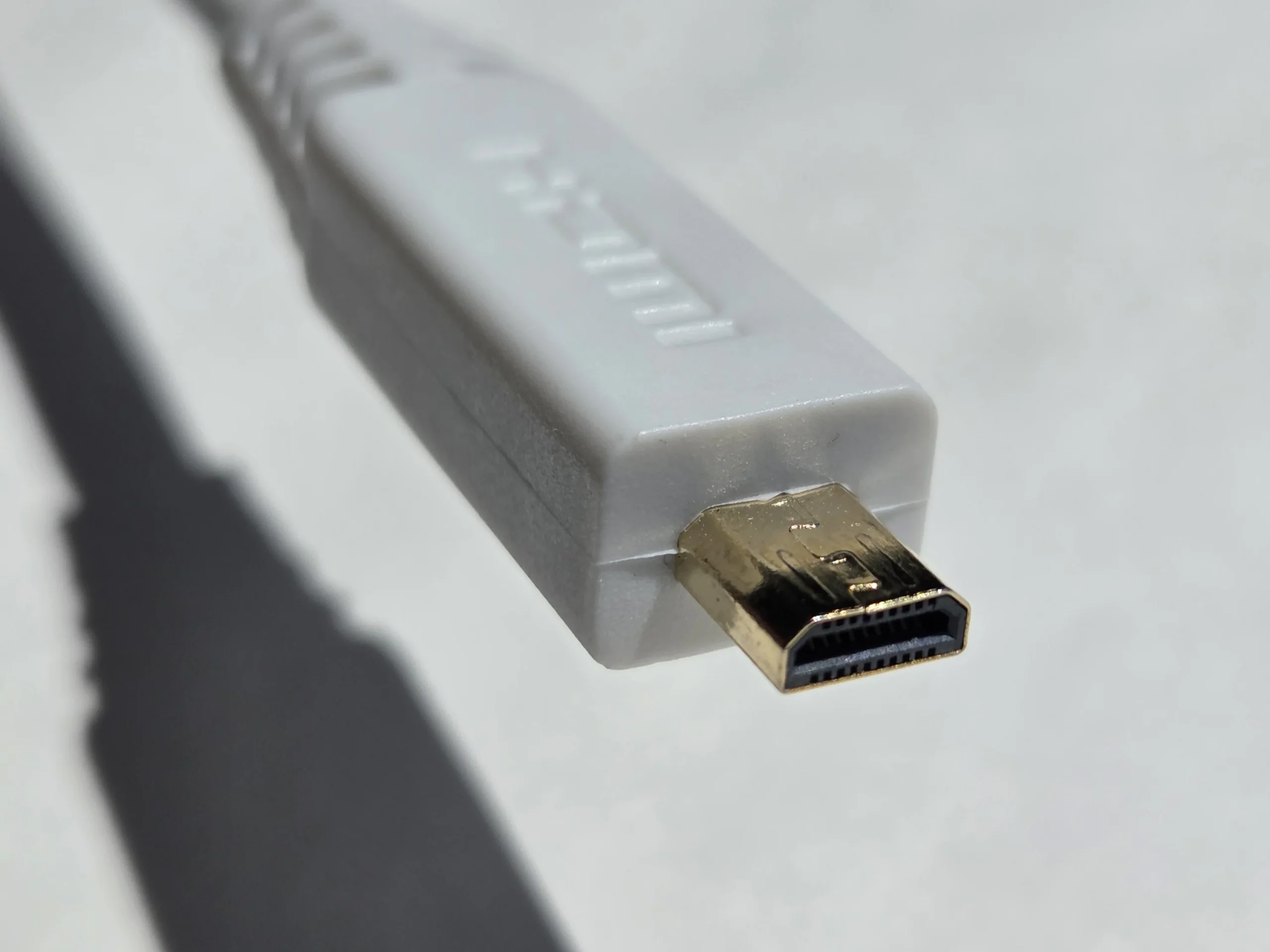
Mini-HDMI is a smaller version of the standard HDMI connector, designed for compact devices where space is limited. It is most commonly found on digital cameras, camcorders, portable monitors, and some tablets or laptops. While it carries the same video and audio signals as full-size HDMI, it requires a mini-HDMI to HDMI cable or adapter to connect to standard TVs, monitors, or receivers. Mini-HDMI supports resolutions up to 4K depending on the version, but it is gradually being replaced by technologies that communicate video over USB-C connectors or full-size HDMI on newer devices.
Micro-HDMI
Micro-HDMI is the smallest version of the HDMI connector, developed for very compact devices. It is most commonly found on older smartphones, action cameras, small portable monitors, and * famously * many Raspberry Pi models. Like mini-HDMI, it carries the same video and audio signals as full-size HDMI but requires a micro-HDMI to HDMI cable or adapter to connect to standard displays. micro-HDMI supports resolutions up to 4K (depending on the version and device), but it has largely been phased out in favor of video technologies using USB-C connectors on modern devices.
digital visual interface (DVI)
DVI (Digital Visual Interface) is a video standard developed in the late 1990s primarily for connecting computers to monitors. It was one of the first widely adopted digital video interfaces and remains common on many older desktop computers, graphics cards, and professional monitors. DVI cables transmit pure video signals (no audio) and are known for delivering sharp, high-quality images, especially on older high-resolution displays. There are three main types of DVI connectors you need to identify when selecting a cable. They are DVI-D, DVI-I, and DVI-A.
Always match the connector type and pin configuration on both your source device and display. Using the wrong type (for example, a DVI-D cable on a DVI-I port that needs analog) will prevent a connection.


DVI-D
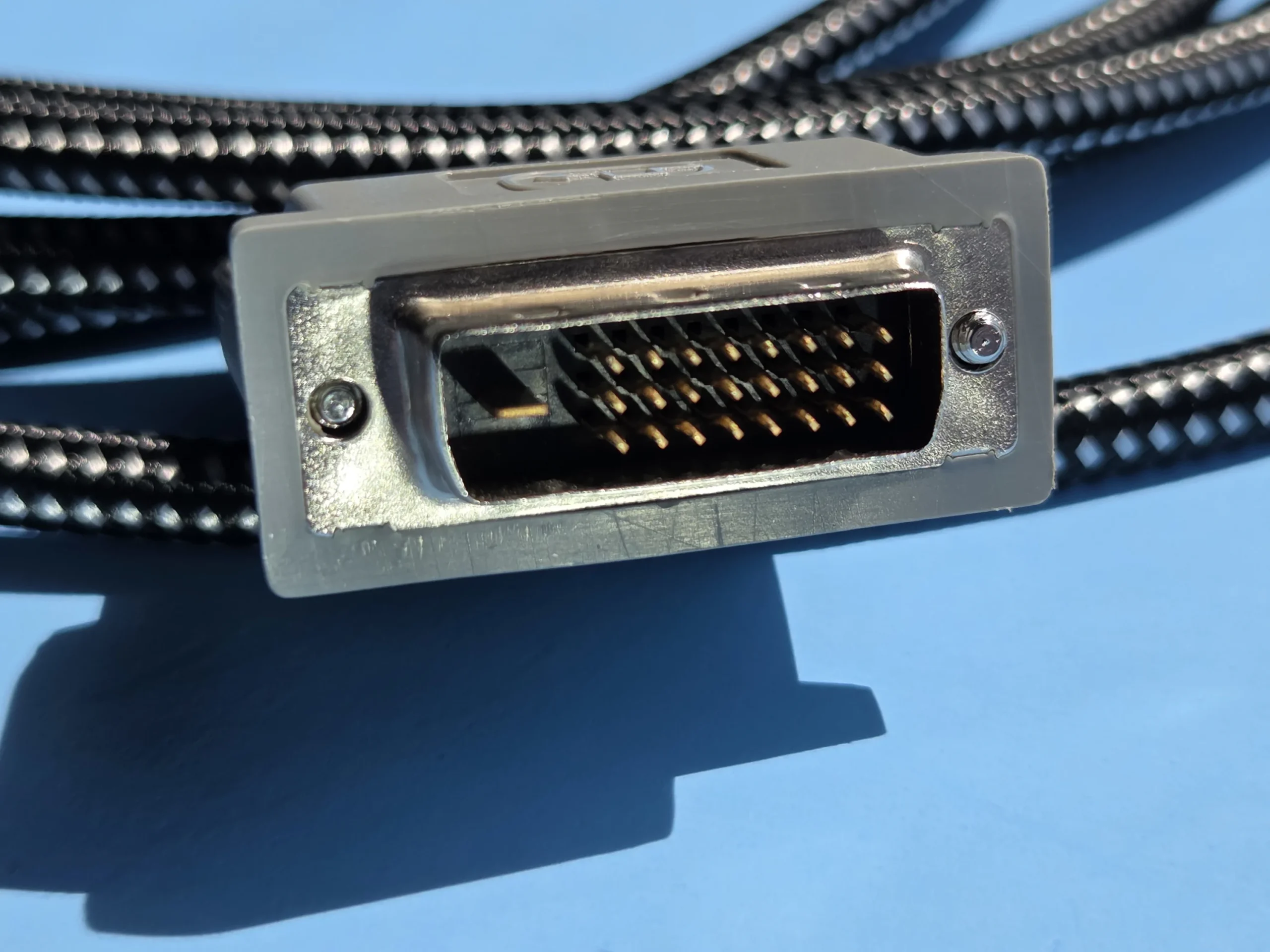
DVI-D (digital) is the most common type of Digital Visual Interface connector and carries only digital signals. It comes in two versions: single-link and dual-link. Single-link DVI-D supports resolutions up to approximately 1920×1200 at 60Hz, while dual-link DVI-D (which uses all the pin columns in the center section) can support higher resolutions such as 2560×1600 at 60Hz. DVI-D connectors have a flat blade on one side with no analog pins.
This type is ideal for modern digital monitors but cannot be adapted to analog VGA displays. You can safely plug a single-link DVI-D cable into a dual-link DVI-D port. It will simply work at the lower single-link resolution limit. However, you cannot get the full higher resolution or refresh rate that the dual-link port and monitor are capable of without a proper dual-link cable. Dual-link provides more bandwidth for a single monitor, not support for multiple monitors on one connection. Some graphics cards can support multiple DVI-D monitors through separate output ports.


DVI-I
DVI-I (integrated) is the most versatile DVI connector because it supports both digital and analog signals. It contains the same digital pins as DVI-D plus four additional analog pins around the flat blade. This allows DVI-I to connect to both digital monitors and older analog VGA displays (using the proper cable or adapter). Like DVI-D, it is available in single-link and dual-link versions. Most graphics cards from the mid-2000s to early 2010s used DVI-I ports.
DVI-A
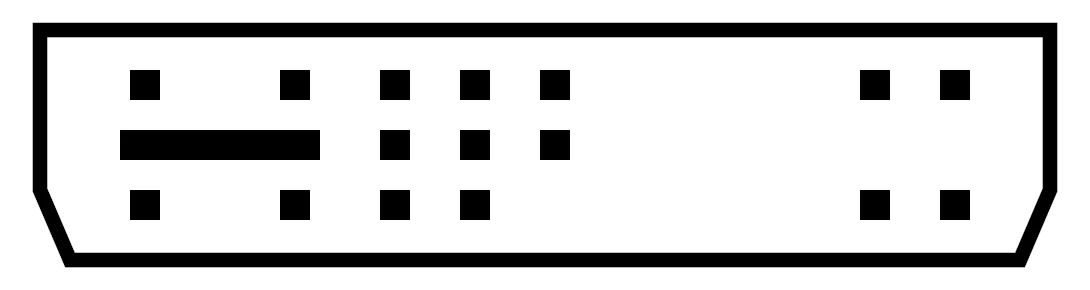
DVI-A (analog) is the rarest type and carries only analog signals. It is essentially a DVI version of VGA and is mainly used for compatibility with older analog monitors. DVI-A connectors have the four large analog pins but lack the full set of digital pins found in DVI-D and DVI-I. Because it is analog-only, it cannot take advantage of the sharper image quality that digital DVI provides. Most users will only encounter DVI-A when using adapters to connect VGA devices.
VGA
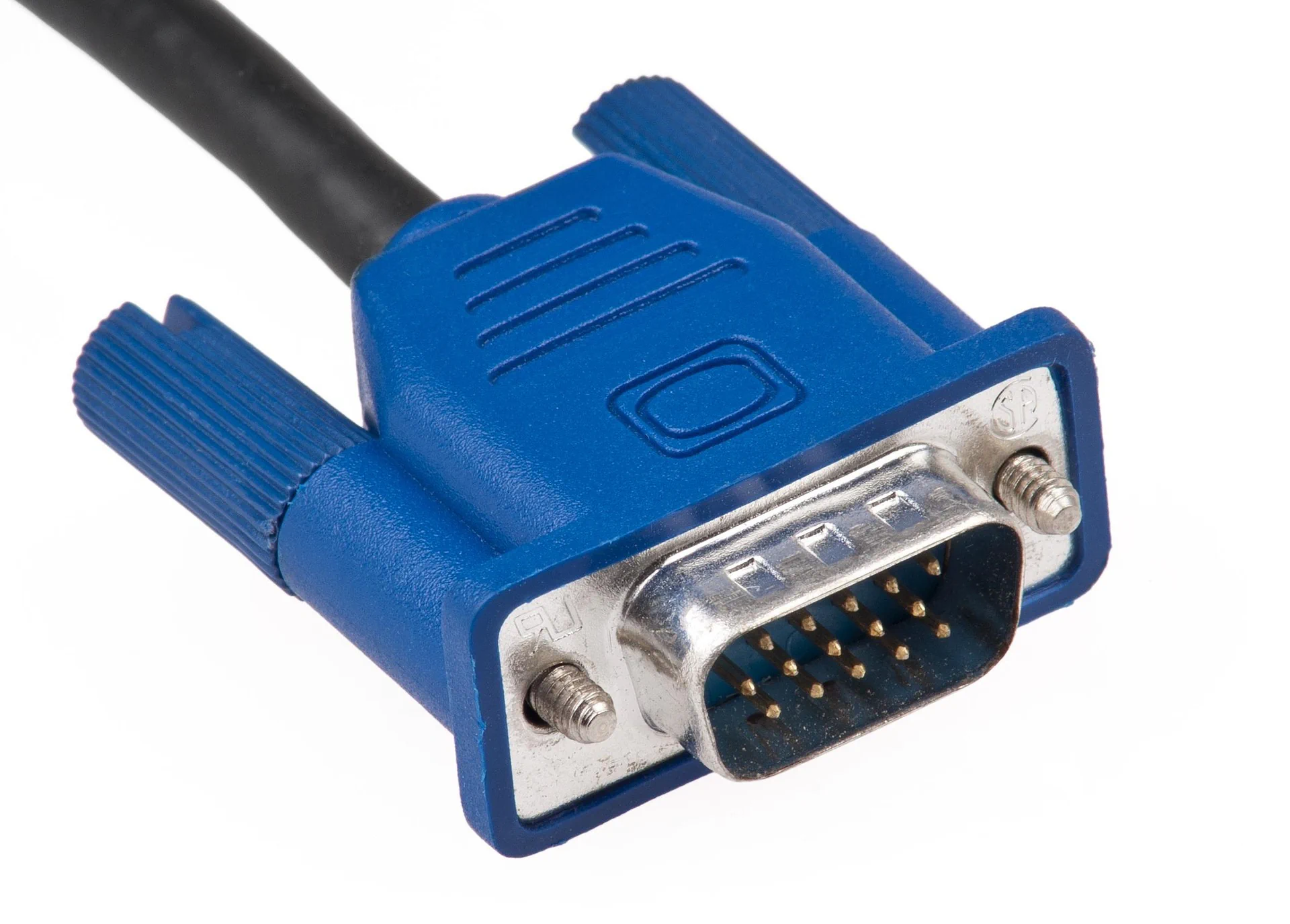
VGA (Video Graphics Array) is an analog video standard that was introduced in 1987 and became the dominant connection method for computers and monitors for decades. It uses a 15-pin DE-15 connector (often called a D-sub connector) and carries only video signals (no audio). While it has largely been replaced by digital standards like HDMI and DisplayPort, VGA is still found on many older computers, projectors, and legacy industrial equipment.
VGA supports resolutions up to 1920×1200 (WUXGA) in ideal conditions, but image quality can degrade over longer cable runs or at higher resolutions due to its analog nature. It remains useful for connecting older PCs to older monitors or projectors when digital options are not available. VGA cables are inexpensive and widely available, but for best results on modern setups, an active VGA-to-HDMI or VGA-to-DisplayPort adapter is often recommended.
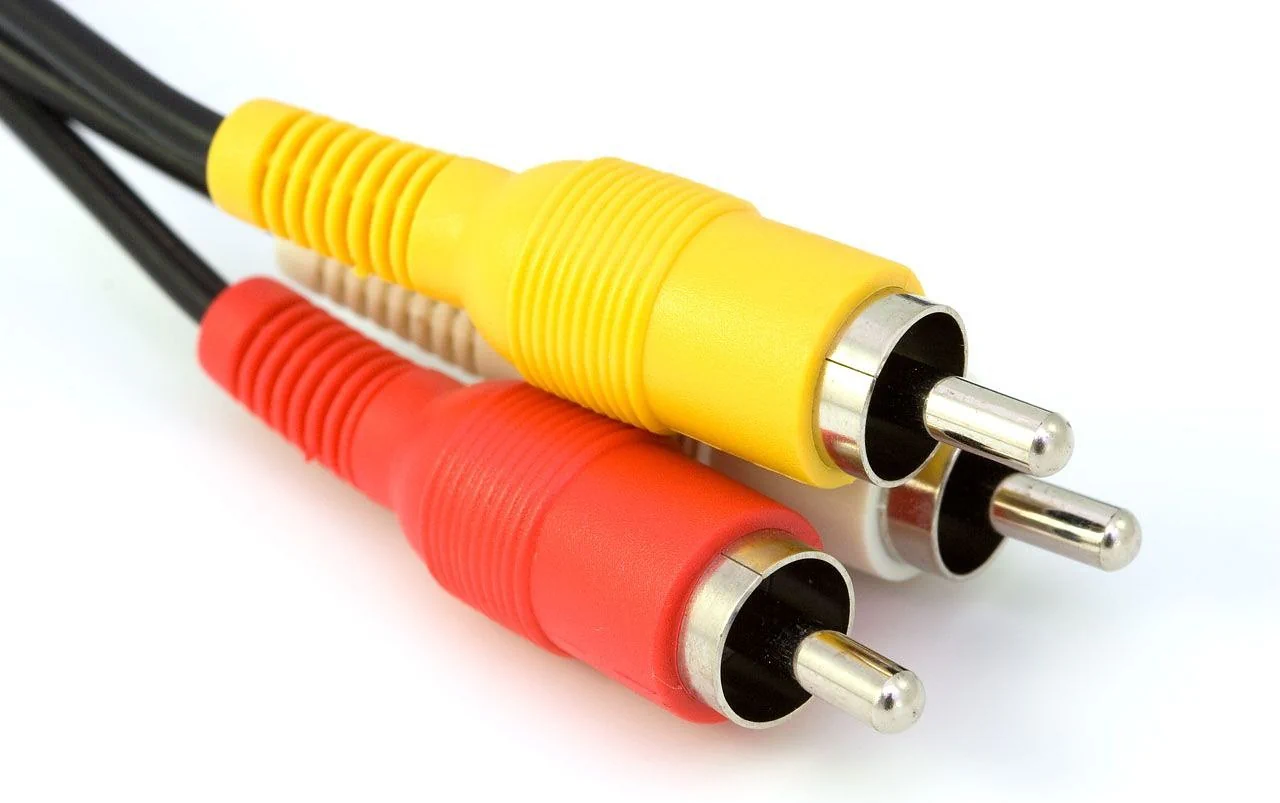
RCA (composite)
RCA connectors, often called composite video cables, are one of the oldest and simplest video connection methods still in use. The standard composite video RCA cable uses a single yellow connector to carry the video signal, while red and white connectors are typically used for stereo audio. This system was widely used from the 1970s through the early 2000s on VCRs, DVD players, older televisions, game consoles, and camcorders.
Composite video is an analog format that combines all video information (brightness, color, and synchronization) into one signal. Because of this, it has relatively low resolution and picture quality compared to modern digital standards. It typically supports standard definition (480i) at best and is prone to color bleeding and reduced sharpness. Despite its limitations, RCA remains useful for connecting legacy equipment or when only composite outputs are available on older devices.
Today, RCA is considered a legacy technology. Most modern TVs and displays no longer have RCA inputs, so users often need an RCA-to-HDMI converter to connect older devices to new screens. While simple and inexpensive, RCA cables are generally not recommended for high-quality viewing experiences.