Video Cables
Identifying the correct video cable
display signals
Video cable technologies
Video cables are essential for transmitting visual signals from a source device to a display. Whether you’re connecting a laptop to a monitor, a gaming console to a TV, or a streaming device to a home theater system, the right video cable ensures clear, high-quality picture output.
The main video cable categories include Thunderbolt, DisplayPort, HDMI, DVI, VGA, and RCA (composite) connectors. These cables work with a wide range of devices, including laptops, desktop computers, monitors, televisions, projectors, gaming consoles, streaming devices, Blu-ray players, and professional audio-visual equipment.
Key Factors for Selecting a Video Cable
When choosing a video cable, the three most important factors are connector type, length, and resolution/refresh rate support. The connector must match the ports on both your source device and display. Cable length matters because longer runs can degrade signal quality, especially at higher resolutions. Finally, make sure the cable supports the resolution and refresh rate you need (for example, 4K at 60Hz or 8K at 120Hz). Other considerations include whether you need audio transmission, bidirectional capabilities, or advanced features like HDR and variable refresh rate (VRR). Many video cables are left in one place most of the time, but connector and cable jacket quality are important considerations for that conference room monitor cable that is used from a dozen different laptops every workday.
Video Cable Compatibility and Adapters
Most modern video technologies can be adapted to one another using the right cable or adapter, but results vary. HDMI and DisplayPort are the most flexible and commonly adapted standards. Thunderbolt and USB4 (via USB-C) can output HDMI or DisplayPort signals with the proper adapter. Older standards like DVI and VGA are more limited. They can usually receive signals from HDMI or DisplayPort with an active adapter, but they cannot output to newer formats without significant quality loss. RCA (composite) is the least compatible with modern high-resolution devices and is mainly used for legacy equipment.
Step 1 – Find your Connectors
Identify each end you need on your video cable so that it connects your devices.
Step 2 – length considerations
Choose the right video cable length.
Selecting the proper video cable length is important for both practicality and performance. A well-chosen length lets you reach your devices comfortably without excess cable that creates clutter or requires messy coiling. Excessively long cables can introduce signal degradation, resulting in reduced image quality, lower maximum resolution, or flickering. This is especially true at higher refresh rates. Choosing the shortest cable that comfortably reaches your setup helps maintain the cleanest signal and best picture quality.
| Technology | Typical Length | Maximum Recommended Length | Notes |
|---|---|---|---|
| Thunderbolt | 0.5 – 2 Meters | 2 Meters (passive) | Signal degrades quickly at longer lengths. |
| DisplayPort | 1 – 3 Meters | 3 – 5 Meters | Active cables allow longer runs. |
| HDMI | 1 – 5 Meters | 10 – 15 Meters (with active cable or signal booster) | Longer HDMI runs often need signal boosters. |
| DVI | 1 – 5 Meters | 5 – 10 Meters | Quality drops noticeably beyond 5 Meters at higher resolutions. |
| VGA | 1 – 5 Meters | 10 – 15 Meters | The analog signal is more length tolerant but lower quality. |
| RCA (composite) | 1 – 10 Meters | 20+ Meters | Very length tolerant but low resolution |
Step 3 – resolution and refresh requirements
How detailed and responsive is the display image?
Another important factor when choosing a video cable is making sure it can support the resolution and refresh rate of your display. Higher resolutions (such as 4K or 8K) and higher refresh rates (such as 120Hz or 144Hz) require significantly more bandwidth. Using a cable that cannot handle your desired settings may result in reduced resolution, lower refresh rates, or no picture at all. Always check both your source device (laptop, console, PC) and your display to determine the combination you want to achieve.
| Desired Resolution | Common Refresh Rates | Recommended Cable Technologies | Notes |
|---|---|---|---|
| 1080p (Full HD) | 60 – 144Hz | HDMI, DisplayPort, DVI, VGA | Most cables handle this easily |
| 1440p (QHD) | 60 – 165Hz | HDMI, DisplayPort | Good balance for gaming |
| 4K (UHD) | 60Hz | HDMI 2.0+, DisplayPort 1.4+, Thunderbolt | Most modern cables support this |
| 4K (UHD) | 120 – 144Hz | HDMI 2.1, DisplayPort 1.4 (DSC), Thunderbolt 4/5 | Requires higher bandwidth cables |
| 8K | 60Hz+ | HDMI 2.1, DisplayPort 1.4+, Thunderbolt 5 | Very demanding on cable quality |
Step 4 – Cable Construction
Other cable considerations
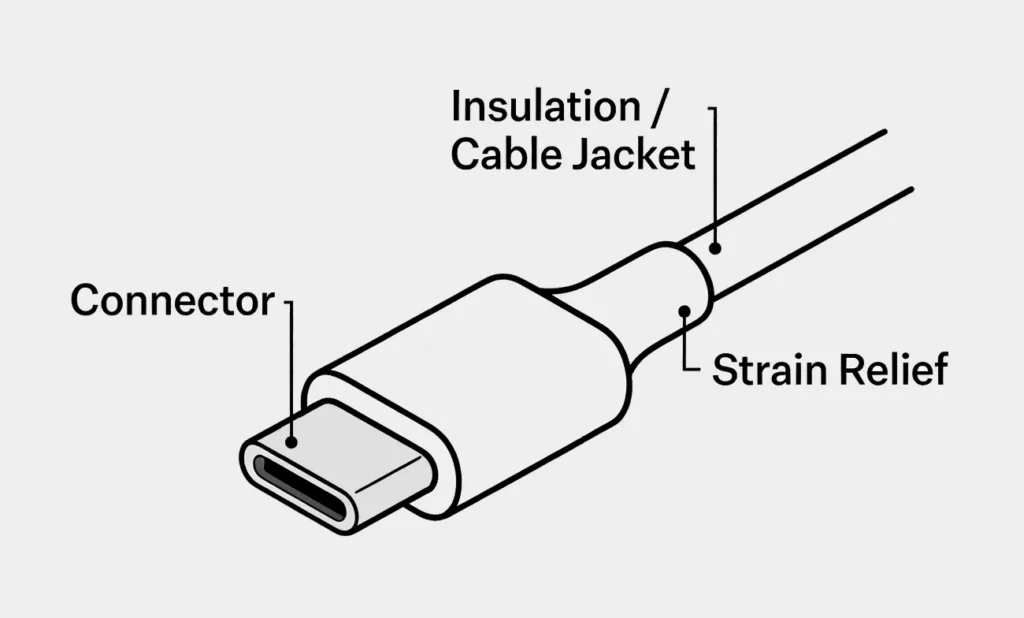
The strain relief is the flexible, often thicker section where the connector meets the cable. Its job is to prevent the cable from bending too sharply at this vulnerable point, reducing stress on the internal wires and helping the cable last longer. The cable jacket (also called the insulation or outer sheath) is the durable outer covering that runs the length of the cable. It protects the delicate internal wires from physical damage, abrasion, heat, and moisture while keeping the cable flexible. Together, these components play a big role in a cable’s durability.